CONTENTS · FIXES · 5 MIN
FIXES · 5 MIN READ
THE FIX
Add every VITE_ variable in Vercel's project settings and redeploy, rewrite unknown paths to index.html, match import casing to file names exactly, build to dist, and add your real domain to Supabase's redirect URLs.
LAST VERIFIED
24 SEPT 2026
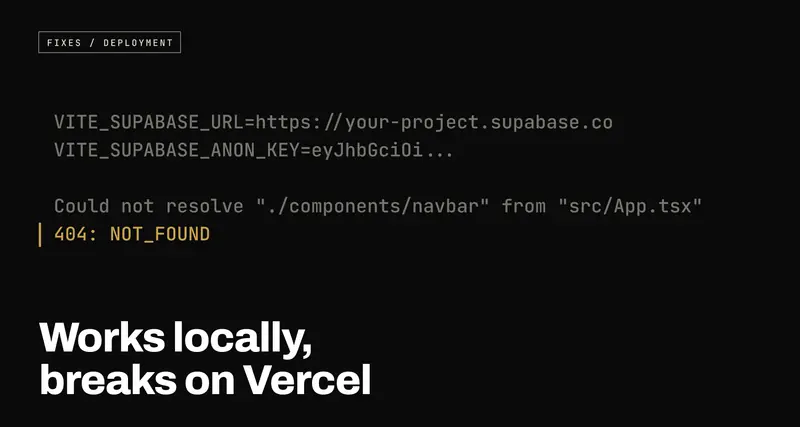
Works locally, breaks on Vercel: the five reasons a Lovable or Cursor app fails in production
USE WHENYour app runs fine on your laptop or in the Lovable preview, and the deployed version is a blank page, a 404, a failed build or a login that bounces to localhost.
When a Vite app works on your machine and breaks on Vercel, it's almost always one of five things: environment variables that never reached the build, deep links that 404 on refresh, a file name whose capitalisation only matters on Linux, the wrong output directory, or Supabase auth still pointing at localhost. How to tell which one you've got, and the fix for each.
"It works on my machine" is a joke among engineers because it's never actually the machine. It's the difference between the machine and wherever the code went next, and for apps built with Lovable, Bolt, Cursor or v0 and deployed to Vercel, that difference is small and very predictable.
Almost all of these apps are the same shape underneath: a React single-page app built with a tool called Vite, talking to Supabase from the browser. So they break on Vercel in the same five ways. Here they are, roughly in order of how often they're the answer, with how to recognise each one.
1. The environment variables never reached the build
What you see: a blank white page. Open the browser console and there's an
error like supabaseUrl is required, or requests going to
https://undefined/rest/v1/....
Why: if your app reads its Supabase URL and key from environment variables
(some Lovable projects hardcode them in src/integrations/supabase/client.ts
instead, in which case this one isn't you), they usually live in a file called
.env that looks like this:
VITE_SUPABASE_URL=https://your-project.supabase.co
VITE_SUPABASE_ANON_KEY=eyJhbGciOi...
That file is on your laptop. It's also, correctly, listed in .gitignore, which
means it never went to GitHub, which means Vercel has never seen it. And Vite
doesn't read these variables when the page loads. It reads them once, at build
time, and pastes the values directly into the JavaScript it produces. If they
weren't there during the build, the literal value undefined is baked into your
site.
The fix: in Vercel, open your project, go to Settings → Environment Variables, and add each one with exactly the same name, for both Production and Preview. Then redeploy. Because the values are pasted in at build time, adding a variable does nothing to a deployment that's already built.
Two rules come with this:
- Only variables whose names start with
VITE_make it into the browser code. A variable calledSUPABASE_URLwithout the prefix will beundefinedin your app, on your laptop and on Vercel alike. - Anything starting with
VITE_is public. It's in the JavaScript anyone can download. The Supabase anon key is designed for that. An OpenAI key, a Stripe secret key or a Supabaseservice_rolekey is not, and if one of those has aVITE_prefix, it's already been published. Rotate it and move the call that needs it into a server function.
2. Every page except the home page 404s on refresh
What you see: the home page loads. You click through to /dashboard and it
works. You refresh, or open that link in a new tab, and get Vercel's
404: NOT_FOUND page.
Why: a single-page app is one HTML file, index.html. When you click a link
inside the app, JavaScript swaps the content and changes the address bar without
asking the server for anything. But a refresh does ask the server, for a file
at /dashboard, and there isn't one. The Lovable preview and npm run dev both
quietly answer every path with index.html. A plain static host doesn't.
The fix: tell Vercel to serve index.html for any path that isn't a real
file. Create vercel.json in the root of the project:
{
  "rewrites": [{ "source": "/(.*)", "destination": "/index.html" }]
}
Vercel checks for real files (your JavaScript, images, favicon.ico) before
applying rewrites, so those keep working. Only paths with no file behind them
fall through to the app, which then shows the right page.
3. The build fails with "Could not resolve"
What you see: the deployment fails at the build step, with an error in the log like:
Could not resolve "./components/navbar" from "src/App.tsx"
And yet the file is right there. You can see it.
Why: you can see Navbar.tsx, capital N. Your laptop's file system (macOS
and Windows, by default) treats navbar and Navbar as the same name. Vercel
builds on Linux, which doesn't. An import that differs from the file name only in
capitalisation works everywhere except the one place it has to.
This is especially common in AI-generated code, because a tool that renames a component or regenerates a file doesn't always update every import to match.
The fix: make the import match the file name exactly, character for character. If it's the file that's wrong rather than the import, rename it through git in two steps, because git on a case-insensitive disk won't notice a change of case alone:
git mv src/components/navbar.tsx src/components/navbar-tmp.tsx
git mv src/components/navbar-tmp.tsx src/components/Navbar.tsx
4. The build succeeds, and then Vercel can't find it
What you see: the build log looks healthy, and then it ends with something
like No Output Directory named "public" found after the Build completed, or the
deployment succeeds but serves a directory listing or a 404.
Why: Vite writes the finished site to a folder called dist. Vercel needs to
know that. If the project was imported with the wrong framework setting, or
someone set the output directory by hand, it's looking in the wrong folder.
The fix: in Settings → Build and Deployment, set the Framework Preset to
Vite. That sets the build command to npm run build and the output
directory to dist. If you've overridden either, clear the override.
And check your package.json has a build script that runs vite build; that's
what Vercel will call.
5. Login works locally and bounces to localhost in production
What you see: sign-up emails arrive, but the confirmation link opens
http://localhost:3000 and fails. Or "Sign in with Google" completes and dumps
the user back on localhost. Or it just says the redirect URL isn't allowed.
Why: Supabase decides where to send people after they confirm an email or finish an OAuth login, and it only sends them to addresses you've approved. When the project was set up, those were your local development addresses, and nobody updated them when the app got a real domain.
The fix: in the Supabase dashboard, go to Authentication → URL Configuration:
- Set the Site URL to your production address, for example
https://yourapp.com. This is the default destination for confirmation emails. - Under Redirect URLs, add every address your app can legitimately send
people back to: your production domain, and, if you use Vercel preview
deployments, a pattern that covers them, such as
https://*-yourteam.vercel.app/**. Keephttp://localhost:8080/**(or whichever port you develop on) so local development keeps working.
If your code passes a redirect explicitly, make sure it's built from the current address rather than hardcoded:
await supabase.auth.signUp({
  email,
  password,
  options: { emailRedirectTo: `${window.location.origin}/welcome` },
});
Whatever that produces has to be on the Redirect URLs list, or Supabase falls back to the Site URL.
For Google sign-in, one thing people change that they shouldn't: the redirect
URI registered in the Google Cloud console is Supabase's own callback,
https://YOUR-PROJECT.supabase.co/auth/v1/callback, and that doesn't change when
you deploy. Your app's domain goes in Supabase's list, not Google's.
How to find out which one you've got
Don't guess. The two places that tell you are the build log in Vercel (for anything that fails before the site exists: that's number 3 or 4) and the browser console on the live site (for anything that fails after: numbers 1, 2 and 5). Between them they usually name the problem outright, in words that match one of the sections above.
If the site builds, loads, logs in and survives a refresh on a deep link, you've cleared all five. What's left after that is usually not a deployment problem at all, but something that was already broken locally and just hadn't been noticed yet.
